Ask for it by name.
“Use Inter for this presentation.” Your agent declares the family and weights. share/artifacts embeds the font files when it publishes.
GOOGLE FONTS + YOUR OWN WOFF2
Choose the typography that makes it yours. Your agent can use Google Fonts or embed your own WOFF2 files in share/artifacts—and carry those fonts into your presentation’s PDF.
A little character.
A clear point of view.
TWO WAYS TO MAKE IT YOURS
“Use Inter for this presentation.” Your agent declares the family and weights. share/artifacts embeds the font files when it publishes.
Give your agent a WOFF2 file you’re licensed to embed. It includes the font in the HTML, so it travels with the document.
OPEN THE ACTUAL FILES
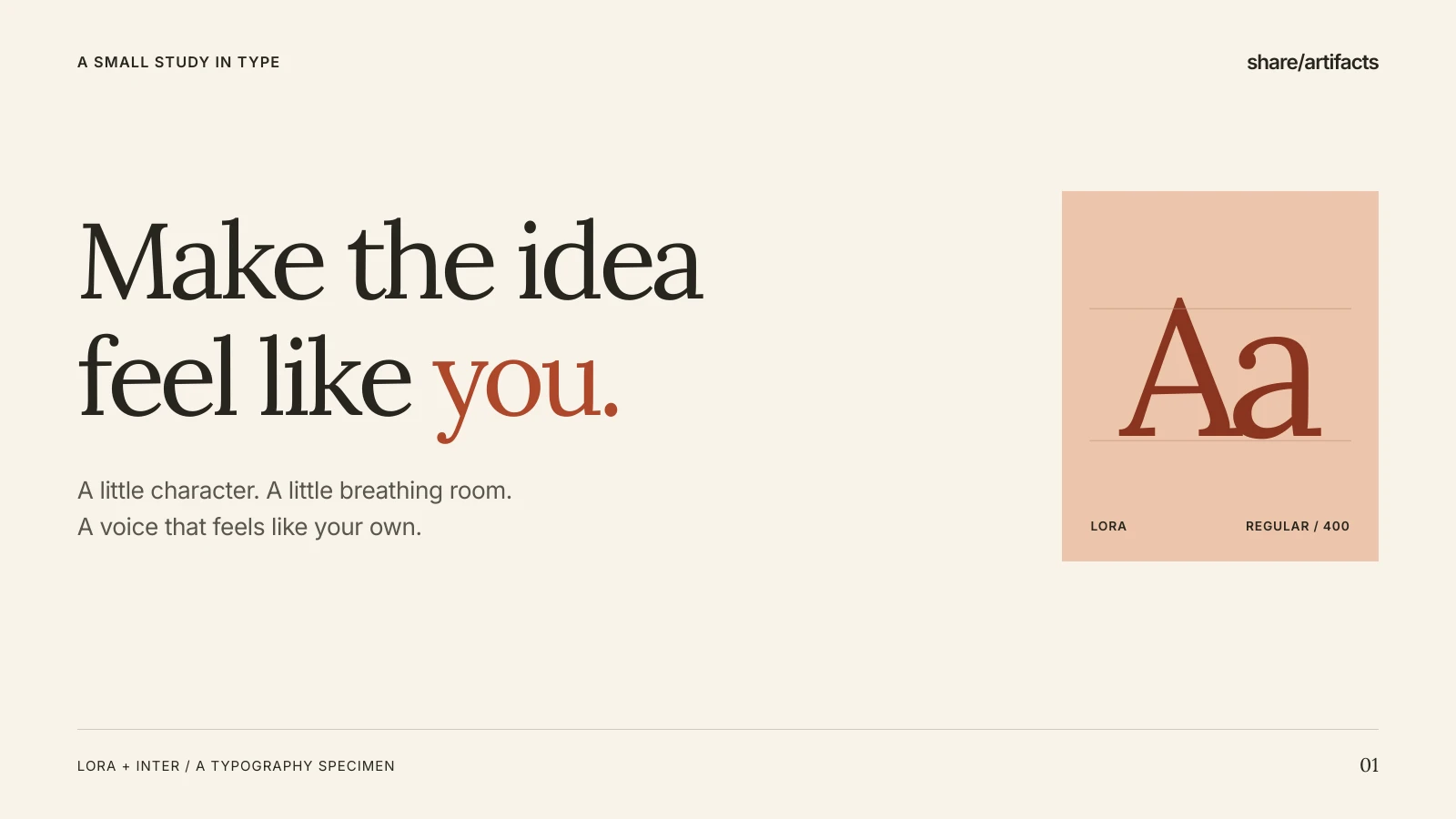
A two-slide example pairing Lora headlines with Inter body text. Both fonts are embedded. Open the HTML, then compare its exported PDF.
Font files travel with the presentation. The PDF renderer works offline.
WITH THE AGENT YOU ALREADY USE
Name a Google Font or provide a WOFF2 file, along with your content and visual direction.
Your agent creates the HTML and CSS. Check the typography, text, and slide boundaries before publishing.
Share the presentation with your chosen audience. Select Download PDF for a copy with the embedded fonts.
Copy this into your agent. It will help with the connection, your font choices, and the presentation.
New to share/artifacts? Connect your agent. Copying the request does not publish anything.
Your creation request
Help me create an HTML presentation with my chosen fonts using share/artifacts. If share/artifacts MCP is not connected, follow https://shareartifacts.dev/connect/agent.md and ask me to sign in or approve the connection when needed. Ask for my source material, audience, and preferred fonts. Use Google Fonts, or a WOFF2 file I have permission to embed. Retrieve the presentation-deck recipe and create the presentation. For Google Fonts, specify the family, required weights, and normal or italic style through the publish_presentation fonts field. For my own WOFF2 file, embed it in the HTML with an @font-face data URL. Show me the draft and review the text, font coverage, layout, and slide boundaries. Wait for my approval before publishing, and confirm who should have access. After publishing, give me the presentation link and explain how to download its PDF. Do not silently replace a font if it fails to load.
A FEW USEFUL DETAILS
Keep the font, the layout, and the delivery in view.
Yes. Give your agent a WOFF2 font file that you have permission to embed. It can include that file in the HTML using an @font-face data URL. Check your font license for web and PDF embedding rights. A font installed only on your computer is not included automatically.
Your agent specifies a Google Fonts family, weights, and style when publishing or updating. share/artifacts fetches the supported font files and embeds them in the saved HTML. Presentation PDF export uses those saved files without contacting Google. Your document text is not sent to Google to request a custom subset.
If a requested Google Font cannot be fetched or exceeds the supported limits, publishing returns an error. Presentation PDF export also checks embedded WOFF2 fonts and fails if an embedded font is invalid or cannot load. Check that your chosen font includes the characters your document needs; successful loading does not guarantee every glyph is covered.
PDF export is available for presentations. Each slide becomes one PDF page in the deck’s supported 16:9 or 4:3 ratio. Content outside the slide boundary is clipped, so review the layout before exporting. General HTML pages do not have this presentation PDF export.
For PDF export, use Google Fonts embedded during publishing or custom embedded WOFF2. The renderer does not fetch external font or image URLs, use fonts installed on your computer, or accept other custom font formats. Existing web pages can still use supported external fonts, but those URLs do not make the fonts available in an exported PDF.
Google Fonts declarations support up to four entries and eight requested weights in total. Embedded fonts are limited to 16 faces, including language subsets, 256 KiB per file, and 512 KiB total. The saved HTML, including base64-encoded font data, must fit within the 1 MB HTML limit. Request only the families and weights you need.
Add the optional fonts field to publish_html, publish_presentation, or update_page. This declaration is for Google Fonts:
"fonts": [
  {
    "family": "Inter",
    "weights": [400, 700],
    "style": "normal"
  }
]
Use the declared family in your CSS. For a custom WOFF2 font, include an @font-face rule with a data:font/woff2;base64,… source in the HTML.